


















Lesson 146 of 201 · Desktop GUI
Swing Basics
Learn Swing basics - JFrame, JPanel, JLabel, JButton and JTextField, the BorderLayout, FlowLayout and GridLayout managers, nesting panels and the event dispatch thread.
Swing is the GUI toolkit that ships with every JDK. With a few dozen lines of code you get a real window with labels, buttons and text fields that looks and behaves the same on Windows, macOS and Linux. Swing is mature, well documented and still behind many large desktop applications, so its concepts are worth knowing even if you later move to JavaFX.
This lesson covers the building blocks: the window (JFrame), containers (JPanel), the most common components (JLabel, JButton, JTextField), the layout managers that position them, and the one threading rule every Swing program must obey. As the GUI overview explained, our server has no screen, so the complete window programs here are read-only: copy them into a .java file and run them locally with java Greeter.java. The runnable examples show the parts that work without a display, including real layout calculations by Swing's own layout managers.
Your first window
Here's a complete Swing program. Every line matters, so read the comments:
import javax.swing.*;

public class FirstWindow {
    public static void main(String[] args) {
        SwingUtilities.invokeLater(FirstWindow::createAndShow);   // build the UI on the EDT
    }

    private static void createAndShow() {
        JFrame frame = new JFrame("My first window");           // title bar text
        frame.setDefaultCloseOperation(JFrame.EXIT_ON_CLOSE);   // closing the window ends the program
        frame.add(new JLabel("Hello, Swing!", SwingConstants.CENTER));
        frame.setSize(360, 200);                                // width x height in pixels
        frame.setLocationRelativeTo(null);                      // center on the screen
        frame.setVisible(true);                                 // windows start hidden
    }
}
JFrameis a top-level window with a title bar and borders. Everything else goes inside it.setDefaultCloseOperation(JFrame.EXIT_ON_CLOSE): by default, clicking the close button only hides the window and the program keeps running invisibly.EXIT_ON_CLOSEends the program;DISPOSE_ON_CLOSEreleases just this window, which is right for secondary windows.setSizeorpack():pack()sizes the window to fit its contents' preferred sizes, which is usually better than hard-coded numbers, because text sizes differ between systems and screen scaling settings.setVisible(true)comes last, after the window is fully built, so it never appears half-finished.SwingUtilities.invokeLaterruns the setup on Swing's event dispatch thread. The last section of this lesson explains why that's not optional.
Containers and components
Swing user interfaces are trees. A JFrame has a content pane, a container that holds your components; frame.add(...) is a shortcut for frame.getContentPane().add(...). Inside it you nest JPanels, each with its own layout manager, until every component sits where you want it.
The components you'll use most:
| Class | What it is | Key methods |
|---|---|---|
JLabel |
Read-only text and/or an icon | setText, setIcon, setHorizontalAlignment |
JButton |
A push button | addActionListener, setEnabled, setMnemonic |
JTextField |
One line of editable text | getText, setText, setColumns, addActionListener (Enter key) |
JPasswordField |
A text field that hides input | getPassword (returns char[]) |
JTextArea |
Several lines of plain text | append, setLineWrap, getRows, getLineCount; put it in a JScrollPane |
JCheckBox, JRadioButton |
On/off choices (radio buttons go in a ButtonGroup) |
isSelected, setSelected |
JComboBox<E> |
A drop-down list | getSelectedItem, addItem |
JList<E>, JTable, JTree |
Lists, grids and hierarchies backed by models | setModel, getSelectedValue |
JPanel |
A plain container for grouping | setLayout, add, setBorder |
JScrollPane |
Adds scroll bars around another component | new JScrollPane(component) |
A JTextArea is created with a number of rows and columns (new JTextArea(5, 30)), which only decide its preferred size: getRows() returns the rows you asked for, while getLineCount() returns how many lines the text really has (counted by line breaks, not by wrapped display lines). Use getLineCount() for a "lines: N" status bar and setLineWrap(true) with setWrapStyleWord(true) so long lines wrap at word boundaries.
Every Swing component class starts with J, which keeps them apart from the older AWT classes with similar names (Button, Label, Frame). Don't mix AWT components into a Swing window; use the J versions.
Components have many common properties inherited from JComponent: setEnabled(false) greys a component out, setToolTipText("...") adds a hover hint, setVisible(false) hides it, and setBorder(BorderFactory.createEmptyBorder(8, 8, 8, 8)) adds padding. Text and fonts can't be measured on our headless server (it has no fonts installed), so the runnable examples below give components explicit sizes instead.
Layout managers
You could place every component at fixed pixel coordinates, but that breaks as soon as a font is bigger, a translation is longer, or the user resizes the window. Instead, each container has a layout manager that computes positions and sizes from the container's size and each child's preferred size. When the window is resized, the layout runs again.
Three layout managers cover most needs.
BorderLayout: five regions
BorderLayout (the default for a frame's content pane) has five regions: NORTH, SOUTH, EAST, WEST and CENTER. North and south keep their preferred height and stretch across the full width; east and west keep their preferred width and fill the height in between; the center gets all the remaining space. Each region holds at most one component (adding a second replaces the first), and empty regions take no space.
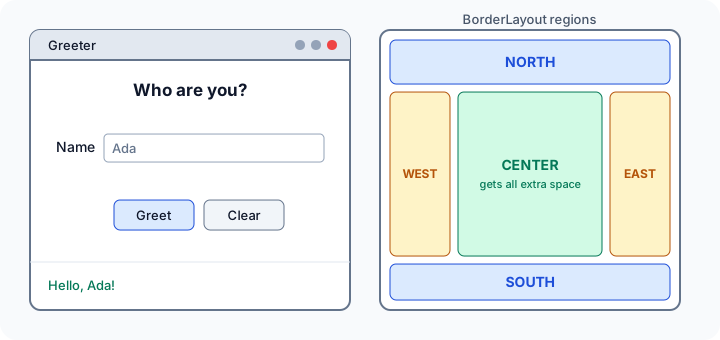
The next example asks Swing's real BorderLayout to lay out a 400 × 300 panel, then "resizes the window" and lays it out again. Watch which regions grow:
Press Run (or Ctrl + Enter) to see the result here.
Program input · what you'd type while the program runs
Type the answers before you press Run, one per line. Each time the program reads a line (with IO.readln() or a Scanner), it gets the next line from this box.
The last line shows the other half of a layout manager's job: computing the container's own preferred size from its children (here 100 + 10 + 80 wide and 40 + 10 + 30 tall). That's what frame.pack() uses to size a window.
FlowLayout: a row that wraps
FlowLayout (the default for JPanel) places components left to right at their preferred sizes, like words in a paragraph, and starts a new row when one is full. Each row is centered by default; new FlowLayout(FlowLayout.LEFT) aligns rows left. It's ideal for a row of buttons. Here, five 80-pixel buttons go into a narrow and then a wide panel:
Press Run (or Ctrl + Enter) to see the result here.
Program input · what you'd type while the program runs
Type the answers before you press Run, one per line. Each time the program reads a line (with IO.readln() or a Scanner), it gets the next line from this box.
At 300 pixels only three buttons fit per row (10 + 80 + 10 + 80 + 10 + 80 + 10 = 280), so "Print" and "Close" wrap to a second row, which is centered on its own. At 500 pixels all five fit on one line. Note that FlowLayout never stretches components: buttons stay 80 pixels wide however big the panel gets.
GridLayout: equal cells
GridLayout(rows, columns, hgap, vgap) divides the container into a grid of identical cells and makes every component fill its cell, ignoring preferred sizes. Components fill the grid row by row in the order you add them. Keypads, calculators and boards are natural fits:
Press Run (or Ctrl + Enter) to see the result here.
Program input · what you'd type while the program runs
Type the answers before you press Run, one per line. Each time the program reads a line (with IO.readln() or a Scanner), it gets the next line from this box.
Every key is exactly the same size: (240 − 2 gaps × 6) / 3 = 76 pixels wide and (300 − 3 × 6) / 4 = 70 pixels tall (GridLayout rounds down and spreads leftover pixels as a margin around the grid).
Other layout managers
BoxLayoutstacks components in one row or column and respects their maximum sizes;Box.createVerticalStrut(10)andBox.createHorizontalGlue()add fixed and flexible space.GridBagLayoutis a flexible grid where cells can span rows and columns and grow by weight. It can do almost anything but is verbose; most developers use it through a GUI builder.CardLayoutshows one of several panels at a time, like the pages of a wizard.GroupLayoutis what IDE GUI builders (for example NetBeans) generate.- Third-party MigLayout is a popular, concise alternative for complex forms.
Nesting panels: the Greeter window
Real windows combine layouts by nesting panels: each panel solves one small problem. The Greeter window in the sketch above uses a BorderLayout for the frame, a FlowLayout panel for the name row, and another FlowLayout panel for the buttons:
import java.awt.BorderLayout;
import java.awt.FlowLayout;
import java.awt.Font;
import javax.swing.*;

public class Greeter {
    public static void main(String[] args) {
        SwingUtilities.invokeLater(Greeter::createAndShow);
    }

    private static void createAndShow() {
        JLabel heading = new JLabel("Who are you?", SwingConstants.CENTER);
        heading.setFont(heading.getFont().deriveFont(Font.BOLD, 18f));

        JTextField nameField = new JTextField(16);           // about 16 characters wide
        JPanel nameRow = new JPanel(new FlowLayout(FlowLayout.CENTER, 8, 8));
        nameRow.add(new JLabel("Name"));
        nameRow.add(nameField);

        JLabel status = new JLabel(" ");                     // a space keeps its height
        JButton greet = new JButton("Greet");
        JButton clear = new JButton("Clear");
        greet.addActionListener(e -> status.setText("Hello, " + nameField.getText().strip() + "!"));
        clear.addActionListener(e -> {
            nameField.setText("");
            status.setText(" ");
            nameField.requestFocusInWindow();
        });

        JPanel buttons = new JPanel();                       // FlowLayout by default
        buttons.add(greet);
        buttons.add(clear);

        JPanel bottom = new JPanel(new BorderLayout());
        bottom.add(buttons, BorderLayout.CENTER);
        bottom.add(status, BorderLayout.SOUTH);

        JPanel content = new JPanel(new BorderLayout(0, 8));
        content.setBorder(BorderFactory.createEmptyBorder(12, 12, 12, 12));
        content.add(heading, BorderLayout.NORTH);
        content.add(nameRow, BorderLayout.CENTER);
        content.add(bottom, BorderLayout.SOUTH);

        JFrame frame = new JFrame("Greeter");
        frame.setDefaultCloseOperation(JFrame.EXIT_ON_CLOSE);
        frame.setContentPane(content);
        frame.getRootPane().setDefaultButton(greet);         // Enter presses Greet
        frame.pack();                                        // size to fit the contents
        frame.setLocationRelativeTo(null);
        frame.setVisible(true);
    }
}
The addActionListener lines connect buttons to code; the next lesson covers events in depth. Notice the habit of building small panels with simple layouts and combining them. It's easier to read and change than one giant GridBagLayout.
To make a window look native, set the system look and feel before creating any components: UIManager.setLookAndFeel(UIManager.getSystemLookAndFeelClassName());. Popular open-source look-and-feel libraries such as FlatLaf give Swing apps a modern flat design with dark mode.
The event dispatch thread
Swing is single-threaded by design. One special thread, the event dispatch thread (EDT), takes events (clicks, key presses, repaint requests, timers) from a queue and handles them one at a time. Two rules follow:
- Create and change Swing components only on the EDT. Swing classes are not thread-safe. Touching them from
mainor a worker thread can cause rare, unreproducible glitches, such as half-painted windows, stale text or deadlocks. That's whymainhands the setup to the EDT withSwingUtilities.invokeLater. - Never block the EDT. While your listener code runs, the EDT can't paint or respond to anything. A slow database query or a
Thread.sleepin a button handler freezes the whole window until it returns. Move slow work to a background thread, for example withSwingWorker(next lesson).
The EDT exists even without a screen, so you can watch it work. This example posts tasks to the event queue from main. One of them is slow, and the task queued behind it has to wait, exactly like a click that arrives while a handler is busy:
Press Run (or Ctrl + Enter) to see the result here.
Program input · what you'd type while the program runs
Type the answers before you press Run, one per line. Each time the program reads a line (with IO.readln() or a Scanner), it gets the next line from this box.
invokeLater returns immediately and runs the task later, in order; invokeAndWait blocks the calling thread until the task has run (never call it from the EDT, which would deadlock). Task 3 was queued right at the start but ran only after task 2's 400 ms "slow job". In a real window, that's 400 ms in which buttons don't respond and nothing repaints. The exact millisecond values depend on the machine, and lines printed by main and by the EDT can interleave differently from run to run (the two threads run at the same time), but the queued tasks always run one after another, in the order they were posted.
Common beginner mistakes
- Forgetting
setVisible(true), or calling it before adding components, so the window is empty until resized. Build first, then show. - Calling
setSizeon components inside a layout. The layout manager overrides it. UsesetPreferredSizesparingly, or better, let components compute their own size and use borders and gaps for spacing. - Adding two components to the same
BorderLayoutregion. Only the last one shows. Put both in aJPanelfirst. - Changing the UI after it's visible without
revalidate(). After adding or removing components at runtime, callcontainer.revalidate()andcontainer.repaint()so the layout runs again. - Doing slow work in a listener, which freezes the window. Use
SwingWorker. - Building the UI on the main thread. It often seems to work, which is exactly why it's dangerous. Always use
invokeLater.
Check your understanding
Quick check · 5 questions
of 5 answered You scored / 5 · perfect!
-
1. A panel with BorderLayout is resized from 400 x 300 to 600 x 300. Its NORTH, WEST and CENTER regions all contain components. Which component gets wider by 200 pixels?
NORTH spans the full width, so it grows with the container. WEST keeps its preferred width, and CENTER takes all remaining horizontal space, so it grows by 200 too. -
2. Five buttons with a preferred width of 80 px go into a 300 px wide panel with FlowLayout and a horizontal gap of 10 px. How are they arranged?
FlowLayout keeps preferred sizes and wraps. Three buttons need 10 + 3 x (80 + 10) = 280 px; a fourth would need 370 px, so it wraps to the next row. -
3. What happens if a button's ActionListener calls
Thread.sleep(5000)?Listeners run on the single event dispatch thread. While it sleeps, no events are handled and nothing repaints. Move slow work to a background thread with SwingWorker. -
4. Why should main() build the window inside
SwingUtilities.invokeLater(...)?Swing is single-threaded. invokeLater queues the setup on the EDT, so all component access happens on one thread. -
5. A GridLayout(2, 2) panel is 200 x 100 with no gaps. What size does each component get?
GridLayout ignores preferred sizes and gives every cell an equal share. Two columns of 200 px are 100 px each; two rows of 100 px are 50 px each.
Summary
- A Swing app is a tree: a
JFrame(top-level window) whose content pane holds nestedJPanels and components such asJLabel,JButtonandJTextField. - Build the window completely, then
pack()(orsetSize),setLocationRelativeTo(null)and finallysetVisible(true); useEXIT_ON_CLOSEfor the main window. - Layout managers position components from preferred sizes:
BorderLayout(five regions, center takes the rest),FlowLayout(wrapping rows at preferred size),GridLayout(equal cells). Nest panels to combine them. - All Swing work happens on the event dispatch thread: start the UI with
SwingUtilities.invokeLater, and never block the EDT with slow work. - After changing components at runtime, call
revalidate()andrepaint().
Next: Swing Events and a Small App, where you'll react to clicks and typing, build a temperature converter and keep it responsive with SwingWorker.
Track your progress
Create a free account to tick off lessons and pick up where you left off on any device.
of Java lessons completed