


















Lesson 150 of 201 · Desktop GUI
JavaFX Introduction
Get started with JavaFX - Application, Stage, Scene and nodes, layout panes, event handlers, properties and binding, FXML and CSS, and how to set up OpenJFX.
JavaFX is Java's modern toolkit for desktop user interfaces. Where Swing components paint themselves, a JavaFX window displays a scene graph: a tree of nodes that a hardware-accelerated engine renders, animates and styles with CSS. Its most distinctive feature is properties and binding: a label's text, a button's disabled state or a progress bar's value can be bound to your data, so the UI updates itself whenever the data changes, without a single "update the label" line in your listeners.
This lesson introduces the essentials: the application lifecycle, stages, scenes and nodes, layout panes, event handlers, properties and bindings, and a short look at FXML and CSS. You'll also see how to set JavaFX up, because since Java 11 it's a separate download (OpenJFX). As the GUI overview explained, our server has no screen and no JavaFX libraries, so all JavaFX code here is read-only. The runnable examples rebuild the ideas that make JavaFX tick (observable properties, bindings, event dispatch through the scene graph and layout calculations) in plain Java, so you can experiment with how they behave.
Stage, Scene and nodes
Every JavaFX program has the same three layers:
Stage: a window. The toolkit creates the first one (the primary stage) and passes it to your application; you can open more withnew Stage().Scene: the content of a stage. It holds the root node of the scene graph, its size and its style sheets. You can swap scenes to show a different screen in the same window.Nodes: everything visible. Controls (Label,Button,TextField,Slider,TableView, ...) are leaves; layout panes (VBox,HBox,BorderPane,GridPane,StackPane, ...) areParentnodes that contain and position their children; shapes, images, charts and media views are nodes too.
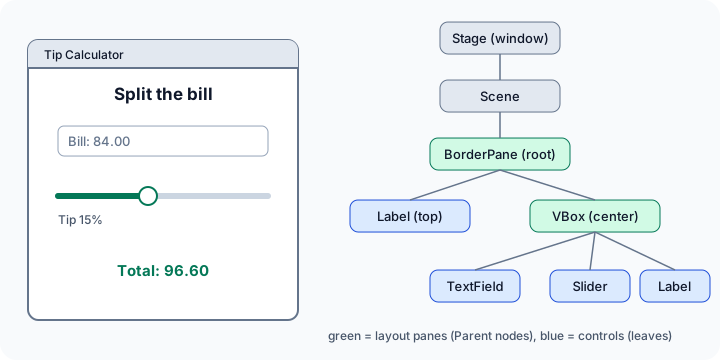
A complete JavaFX program extends Application and overrides start:
import javafx.application.Application;
import javafx.geometry.Insets;
import javafx.scene.Scene;
import javafx.scene.control.Button;
import javafx.scene.control.Label;
import javafx.scene.layout.VBox;
import javafx.stage.Stage;

public class HelloFX extends Application {
    @Override
    public void start(Stage stage) {                       // runs on the JavaFX Application Thread
        Label message = new Label("Hello, JavaFX!");
        Button button = new Button("Click me");
        button.setOnAction(event -> message.setText("Thanks for clicking"));

        VBox root = new VBox(12, message, button);         // 12 px between children
        root.setPadding(new Insets(20));

        stage.setTitle("Hello");
        stage.setScene(new Scene(root, 320, 160));
        stage.show();
    }

    public static void main(String[] args) {
        launch(args);                                      // starts the toolkit, then calls start()
    }
}
launch starts the JavaFX runtime and runs the lifecycle: init() (on a launcher thread, for non-UI setup), then start(Stage) on the JavaFX Application Thread, and finally stop() when the last window closes (or Platform.exit() is called). Like Swing's event dispatch thread, the Application Thread is the only thread allowed to touch a live scene graph. From other threads, use Platform.runLater(() -> ...), the counterpart of SwingUtilities.invokeLater.
Layout panes
In Swing you give a JPanel a layout manager; in JavaFX the pane itself is the layout. The most important ones:
| Pane | Arranges children | Typical use |
|---|---|---|
VBox / HBox |
In a column / a row, with spacing | Forms, toolbars, button rows |
BorderPane |
Top, bottom, left, right, center | The main window skeleton |
GridPane |
In rows and columns, cells can span | Forms with aligned labels and fields |
StackPane |
On top of each other, centered | Overlays, badges, centering one node |
FlowPane |
In rows that wrap | Tag lists, galleries |
TilePane |
In equal-size tiles | Icon grids, keypads |
AnchorPane |
Pinned to distances from the edges | Fixed-position layouts from Scene Builder |
Panes respect each child's minimum, preferred and maximum size. Extra space goes nowhere by default; you opt in per child with grow priorities, for example VBox.setVgrow(list, Priority.ALWAYS) so a list takes the leftover height. Spacing between children and padding around the inside of the pane are separate settings. Here's the arithmetic a VBox performs, written out in plain Java:
Press Run (or Ctrl + Enter) to see the result here.
Program input · what you'd type while the program runs
Type the answers before you press Run, one per line. Each time the program reads a line (with IO.readln() or a Scanner), it gets the next line from this box.
This is a simplified model (real panes also handle minimum and maximum sizes, pixel snapping and alignment), but the core rule is the same: preferred sizes first, then extra space only to children that asked to grow. Forgetting setVgrow/setHgrow is the classic reason a JavaFX list or text area refuses to fill the window.
Event handlers
JavaFX controls expose convenience properties for the most common events: button.setOnAction(e -> ...), field.setOnKeyPressed(e -> ...), node.setOnMouseClicked(e -> ...). Each holds one handler. To attach several, use addEventHandler(type, handler).
Under the hood, every event travels along the path from the window down to the target node (the one that was clicked) and back up again:
- Capturing phase: from the
Stagedown to the target, each node's event filters run (addEventFilter). A parent can intercept an event before its children see it. - Bubbling phase: from the target back up, each node's event handlers run (
addEventHandler,setOnXxx).
Any filter or handler can call event.consume() to stop the event from travelling further. This model, which web developers know from the DOM, lets you put one handler on a container for all its children or block input on a whole region with one filter. The simulation below implements that dispatch chain so you can watch it:
Press Run (or Ctrl + Enter) to see the result here.
Program input · what you'd type while the program runs
Type the answers before you press Run, one per line. Each time the program reads a line (with IO.readln() or a Scanner), it gets the next line from this box.
In the last run the button never saw the click, because the parent's filter consumed it on the way down. In real JavaFX the event types are typed constants (MouseEvent.MOUSE_CLICKED, KeyEvent.KEY_PRESSED, ActionEvent.ACTION), and controls consume some events themselves; a Button, for instance, turns a mouse click into an ActionEvent.
// Real JavaFX equivalents (read-only)
form.addEventFilter(MouseEvent.MOUSE_CLICKED, event -> {
    if (locked) event.consume();                   // children never see the click
});
form.addEventHandler(ActionEvent.ACTION, event ->  // one handler for every button inside
        System.out.println("Action from " + event.getTarget()));
Properties and binding
Almost every attribute of a JavaFX node is a property: an object that holds a value and notifies listeners when it changes. A Label has textProperty(), a Slider has valueProperty(), a Button has disableProperty(). You can create your own too: SimpleStringProperty, SimpleIntegerProperty, SimpleDoubleProperty, SimpleBooleanProperty, SimpleObjectProperty<T>. By convention a class exposes three methods per property:
public class Order {
    private final IntegerProperty quantity = new SimpleIntegerProperty(this, "quantity", 1);

    public IntegerProperty quantityProperty() { return quantity; }   // the property itself
    public int getQuantity() { return quantity.get(); }               // plain getter
    public void setQuantity(int value) { quantity.set(value); }       // plain setter
}

order.quantityProperty().addListener((observable, oldValue, newValue) ->
        System.out.println("quantity " + oldValue + " -> " + newValue));
The JDK's own java.beans.PropertyChangeSupport (part of the java.desktop module, so it works here) implements the same "notify listeners on change" idea. The next example builds a tiny property class on top of it, with the JavaFX-style addListener((observable, oldValue, newValue) -> ...) shape:
Press Run (or Ctrl + Enter) to see the result here.
Program input · what you'd type while the program runs
Type the answers before you press Run, one per line. Each time the program reads a line (with IO.readln() or a Scanner), it gets the next line from this box.
Setting a property to the value it already has fires nothing. JavaFX behaves the same way, and that rule is what keeps two-way bindings from bouncing back and forth forever.
Bindings
Listeners are flexible, but for "this value is always computed from those values" JavaFX offers something better: bindings.
target.bind(observable): a one-way binding. The target always equals the source (or an expression of several sources), and setting the target directly throwsRuntimeException: A bound value cannot be set.a.bindBidirectional(b): both stay equal; changing either updates the other. Perfect for connecting a form field to a model property.- Expressions:
price.multiply(quantity),Bindings.format("%.2f €", total),field.textProperty().isEmpty(),Bindings.when(cond).then(a).otherwise(b)build computed observables you can bind to.
// Real JavaFX (read-only): a tip calculator without a single "update" method
DoubleProperty bill = new SimpleDoubleProperty(84.0);
Slider tipSlider = new Slider(0, 30, 15);                // tip in percent
Label total = new Label();
total.textProperty().bind(Bindings.format("Total: %.2f",
        bill.multiply(tipSlider.valueProperty().divide(100).add(1))));

TextField name = new TextField();
Button save = new Button("Save");
save.disableProperty().bind(name.textProperty().isEmpty());   // disabled until a name is typed
name.textProperty().bindBidirectional(customer.nameProperty());
The runnable version below adds one-way and two-way binding to the little property class, using the same rules: a bound property recomputes when any dependency changes and refuses set, and a bidirectional pair stays in sync without looping forever.
Press Run (or Ctrl + Enter) to see the result here.
Program input · what you'd type while the program runs
Type the answers before you press Run, one per line. Each time the program reads a line (with IO.readln() or a Scanner), it gets the next line from this box.
Bindings are why JavaFX code often has no "refresh the UI" methods at all: you describe relationships once, and the toolkit keeps them true. Two cautions from real projects. First, keep bindings on the Application Thread when they touch nodes. Second, a binding object such as price.multiply(quantity) is referenced only weakly by its sources. If you create one, attach a listener to it and keep no other reference, it can be garbage-collected and your listener silently stops firing, so store such bindings in a field (see Memory and Garbage Collection).
FXML and CSS in brief
JavaFX lets you move the structure and the look of a screen out of Java code.
FXML is an XML format that describes a scene graph. A controller class receives the nodes through @FXML fields and handles events in @FXML methods. Scene Builder, a free visual editor, reads and writes FXML.
<?xml version="1.0" encoding="UTF-8"?>
<?import javafx.scene.control.*?>
<?import javafx.scene.layout.*?>

<VBox xmlns:fx="http://javafx.com/fxml" fx:controller="app.GreeterController"
      spacing="10" styleClass="card">
    <Label text="Who are you?" styleClass="heading"/>
    <TextField fx:id="nameField" promptText="Your name"/>
    <Button text="Greet" onAction="#greet" defaultButton="true"/>
    <Label fx:id="result"/>
</VBox>
public class GreeterController {
    @FXML private TextField nameField;
    @FXML private Label result;

    @FXML
    private void greet() {
        result.setText("Hello, " + nameField.getText().strip() + "!");
    }
}

// In start(): load the FXML and show it
Parent root = FXMLLoader.load(getClass().getResource("greeter.fxml"));
Scene scene = new Scene(root);
scene.getStylesheets().add(getClass().getResource("app.css").toExternalForm());
CSS styles nodes by type, style class (styleClass), id (fx:id / setId) and pseudo-class (:hover, :focused, :disabled). JavaFX CSS properties start with -fx-:
.card {
    -fx-padding: 20;
    -fx-background-color: #f8fafc;
}
.heading {
    -fx-font-size: 18px;
    -fx-font-weight: bold;
}
.button:hover {
    -fx-background-color: #2563eb;
    -fx-text-fill: white;
}
Long tasks and threads
The threading rules match Swing's: never block the Application Thread, and never touch live nodes from other threads. JavaFX's counterpart to SwingWorker is javafx.concurrent.Task<V>, whose progress, message and value are properties you can bind directly to a ProgressBar or Label:
Task<Integer> countPrimes = new Task<>() {
    @Override
    protected Integer call() {                   // runs on a background thread
        int count = 0;
        for (int n = 2; n < 5_000_000; n++) {
            if (isPrime(n)) count++;
            if (n % 100_000 == 0) updateProgress(n, 5_000_000);
        }
        return count;
    }
};
progressBar.progressProperty().bind(countPrimes.progressProperty());
countPrimes.setOnSucceeded(e -> result.setText("Primes: " + countPrimes.getValue()));  // on the FX thread
Thread.ofVirtual().start(countPrimes);
Setting up JavaFX
JavaFX isn't in the JDK, so you add it like any library. You have three options:
-
A build tool (recommended). With Maven, add the
org.openjfxdependencies and thejavafx-maven-plugin, then runmvn javafx:run. With Gradle, apply theorg.openjfx.javafxpluginplugin. The build tool downloads the right native libraries for your operating system. See Build Tools.XML<dependency> <groupId>org.openjfx</groupId> <artifactId>javafx-controls</artifactId> <version>25</version> </dependency>
-
The JavaFX SDK. Download and unzip the SDK for your platform from the OpenJFX project, then run single files with it on the module path:
Terminaljava --module-path /path/to/javafx-sdk-25/lib --add-modules javafx.controls,javafx.fxml HelloFX.java
-
A JDK that bundles JavaFX, such as Azul Zulu FX or BellSoft Liberica Full. Then
java HelloFX.javaworks directly.
Use a JavaFX version that matches your JDK's major version, or an older one; the OpenJFX release notes list the minimum JDK each version needs. To ship your app, jlink and jpackage produce a trimmed runtime and a native installer that include JavaFX.
Check your understanding
Quick check · 5 questions
of 5 answered You scored / 5 · perfect!
-
1. In a JavaFX application, which object represents the window, and which one holds the root node?
A Stage is a window. Its Scene contains the scene graph, starting at a root node such as a BorderPane or VBox. -
2. A VBox is 400 px tall and its children's preferred heights add up to 250 px. No child has a vgrow priority. What happens to the extra 150 px?
Panes only give extra space to children that ask for it with VBox.setVgrow(child, Priority.ALWAYS) or SOMETIMES. Otherwise the space remains unused. -
3. A parent pane has an event filter that calls event.consume() for mouse clicks. The user clicks a button inside the pane. What happens?
Filters run in the capturing phase, from the Stage down to the target. Consuming the event there stops it before it reaches the button and its handlers. -
4.
total.textProperty().bind(...)has been called. Later the code callstotal.setText("0"). What happens?A one-way bound property is fully controlled by its binding, so setting it throws. Call unbind() first, or use bindBidirectional if both sides should be editable. -
5. How do you safely update a Label from a background thread in JavaFX?
Live nodes may only be touched on the JavaFX Application Thread. Platform.runLater queues work there, and Task updates its properties on that thread for you.
Summary
- A JavaFX app extends
Application;launchcallsinit, thenstart(Stage)on the JavaFX Application Thread, thenstopon exit. - A
Stageis a window, aSceneholds the scene graph, and nodes are controls (leaves) or layout panes (VBox,HBox,BorderPane,GridPane,StackPane, ...). - Panes use preferred sizes and give extra space only to children with a grow priority (
setVgrow,setHgrow). - Events pass through filters on the way down to the target and handlers on the way back up;
consume()stops them.setOnActionand friends are shortcuts. - Properties notify listeners on change;
bind,bindBidirectionaland binding expressions keep the UI in sync with your data automatically. - FXML separates structure, CSS (
-fx-properties) separates styling;TaskandPlatform.runLaterhandle background work. - JavaFX is a separate download (OpenJFX): use Maven/Gradle plugins, the SDK with
--module-path, or a JDK that bundles it.
Next: Memory and Garbage Collection, where you'll see how the JVM allocates objects and frees the ones you no longer use.
Track your progress
Create a free account to tick off lessons and pick up where you left off on any device.
of Java lessons completed