
























Lección 27 · Slides and Visuals
Slides: When and Why to Use Them
Decide whether your talk needs slides, give every visual a clear job, plan on paper first and keep your slides separate from your handout.
Many people prepare a talk by opening slide software and typing everything they know. The slides become the speaker's notes, the audience's reading material and the handout at the same time. They rarely do any of these jobs well.
A visual aid has one purpose: to help your listeners understand or remember. You are the presentation. The slides support you.
What you will learn
- When visuals help and when they get in the way
- Jobs that a slide can do well
- The difference between slides, notes and handouts
- How to plan visuals before opening any software
- Alternatives to slides
Do you need slides at all?
Ask: What can people see that would help them more than only hearing it?
| Slides often help when | You may not need slides when |
|---|---|
| You show a place, object, design or process | You give a short toast or thank-you |
| You compare numbers | You tell one personal story |
| You introduce new terms or names | You lead an open discussion |
| The structure is long or complex | The group is small and you want conversation |
| Many listeners use a second language and key words help them | The room cannot show slides well |
Also check what the event expects. Some classes and conferences require slides or give you a template. Some places have no projector at all. Ask early.
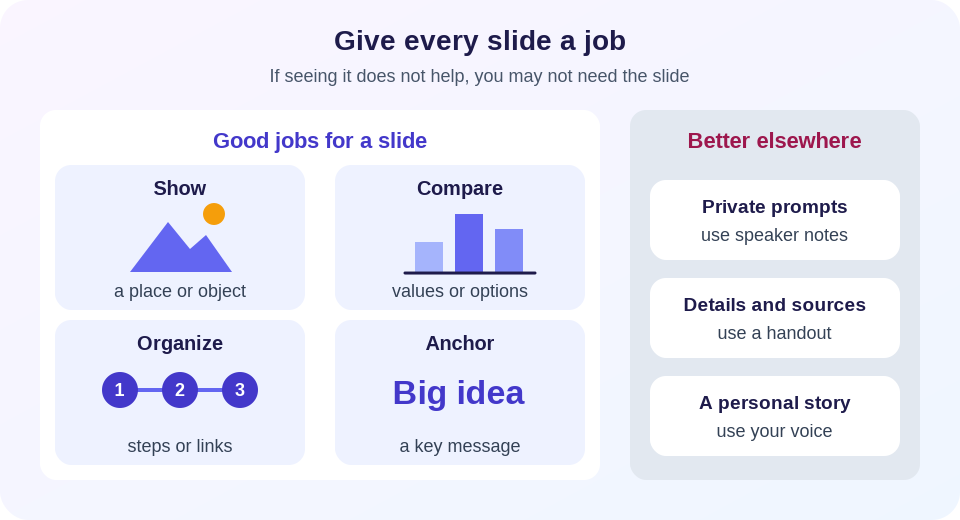
Four good jobs for a visual
- Show something that is hard to describe: a photo, a map or a screen from a product you may share.
- Compare values or options: a simple chart or a two-column table.
- Organize ideas: steps, a timeline or the relationship between parts.
- Anchor a key message or term: a few large words.
If a slide does none of these, ask whether it needs to exist.
Three documents, three jobs
| Item | For whom | When | Content |
|---|---|---|---|
| Slides | The audience | During the talk | Visual support, few words |
| Speaker notes | You | During the talk | Prompts, numbers, transitions, time marks |
| Handout | The audience | Often after the talk | Full details, sources, links, next steps |
When one file must do all three jobs, slides often fill with text. Then people try to read while you speak. Reading one set of sentences and listening to another is hard to do at once. If your slide shows the same long text that you read aloud, listeners may read ahead and stop listening.
You can put extra details in an appendix: slides after the ending that you open only if someone asks.
Plan on paper first
Start with your structure, not with a design.
- Write your main message in one sentence.
- List your main points in order.
- For each point, ask, "Does a visual help here?"
- If yes, sketch a small box on paper and draw what goes inside.
- Under each box, write the one idea the slide should show.
This sketch is called a storyboard. It is quick to change, and you are less likely to keep weak slides only because you spent a long time designing them.
How many slides?
There is no correct number. A slide with one photo may stay up for five seconds. A diagram may need several minutes of explanation. Count your time and your ideas, then practice with the slides. If you rush through them, remove or combine some.
Blank moments are useful
You do not need something on screen all the time. When you tell a story or invite discussion, a plain dark slide brings attention back to you. Many presentation tools and remotes can also blank the screen. Learn how your tool does it before the talk.
Check each slide against your talk
When your first draft is ready, read your main message again. Then ask of each slide, "How does this help my listeners with that message?" If you cannot answer, move the slide to the appendix or remove it.
Other visual aids
- A physical object: hold it still and high enough to see. In a large room it may be too small.
- A whiteboard or flip chart: good for building an idea step by step. Write large. Turn back to the audience to talk.
- A live demonstration: vivid, but things can fail. Prepare a recording or screenshots as a backup.
- A printed sheet: useful for detail. If you hand it out early, expect people to read it.
Think about listeners who cannot see the visual well. Say what is important in it.
A worked example
Leila plans a talk to neighbors about a shared garden. Her first draft has a slide for every paragraph.
She storyboards again. She keeps a photo of the empty plot, a simple drawing of the planned beds, a short table comparing two watering options and one slide with the date of the first work day. Her personal story about growing food with her family gets a blank screen. The cost details go into a one-page handout. Now each visual has a job.
Common mistakes
Do not start with a design template before you know your message. Do not use slides as your full script. Do not add a picture only to fill space. Do not try to make one file serve as slides, notes and report without checking how each use works. Do not depend completely on technology.
Try it
Decide on the best tool for each need.
Check your understanding
Quick check · 4 questions
of 4 answered You scored / 4 · perfect!
-
1. What is the main purpose of a visual aid?
A visual supports the audience's understanding. -
2. What is a storyboard in this lesson?
It helps you plan before designing. -
3. Where should long background detail usually go?
People can read detail when they have time. -
4. Why prepare a backup for a live demonstration?
A recording or screenshots let you continue.
Summary
- Ask what seeing adds to hearing.
- Give each visual a job: show, compare, organize or anchor.
- Separate slides, notes and handouts.
- Storyboard on paper before designing.
- Use blank screens when attention belongs on you.
Sigue tu progreso
Crea una cuenta gratis para marcar lecciones y retomar donde lo dejaste en cualquier dispositivo.