
























Lição 1 · How Video Works
Video Editing: Your Course Map
Start here: see what video editing is, what the nine chapters cover, what you need to practice, and how to use the exercises in this free course.
Video editing is the craft of choosing pieces of recorded material and putting them in an order that makes sense to a viewer. You decide what to keep, what to remove, how long each shot stays on screen, and what the audience hears. A good edit often goes unnoticed. The viewer just follows the story.
This course is for beginners and for people who have edited a little and want a stronger foundation. It teaches ideas that stay useful in any editing program. Menu names and buttons differ between tools and versions, so you will learn what to look for rather than where to click.
What you will learn
- What the nine chapters cover and in what order
- What you need in order to practice
- How to use the exercises and quizzes
- A simple habit that makes you improve faster
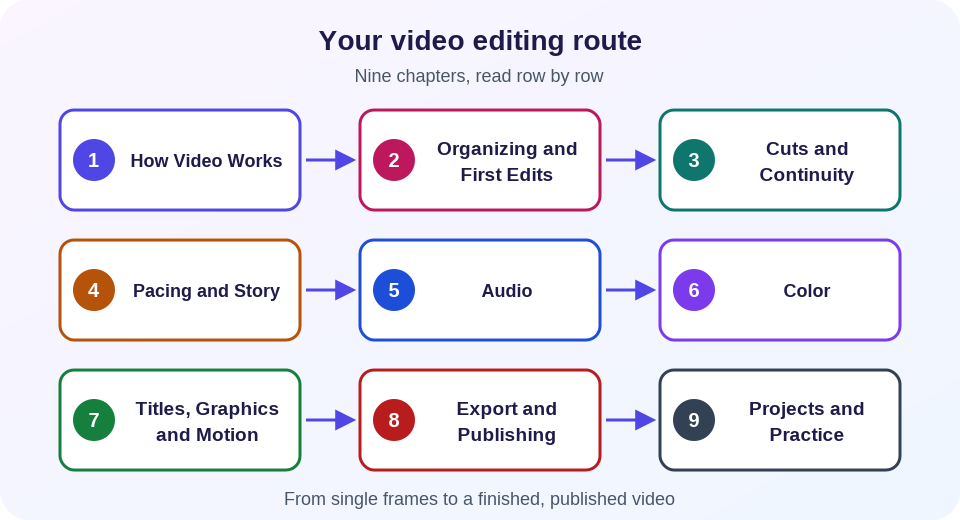
The route through the course
The first chapters build the base. Later chapters add polish.
- How Video Works explains frames, resolution and files.
- Organizing and First Edits shows how to sort footage and make a first rough cut.
- Cuts and Continuity teaches when to cut and how to keep scenes believable.
- Pacing and Story is about structure, rhythm and meaning.
- Audio covers dialogue, music and sound effects.
- Color covers correction and creative looks.
- Titles, Graphics and Motion adds text and movement.
- Export and Publishing helps you deliver a file that plays well.
- Projects and Practice puts everything together.
The order matters. Color work on a scene that you later delete is wasted time. For that reason, you first learn to shape the story, and only then polish it.
What you need
You can start with very simple tools:
- A computer, tablet or phone that can run an editing app. Many apps have free versions.
- Some footage. Short clips you record yourself are ideal. A phone is enough.
- Headphones, so you can hear details in the sound.
- Free storage space. Video files can be large.
If you film other people, ask for their permission first. Rules about filming, privacy and publishing differ from country to country. The same is true for music, images and clips made by someone else. Using them without permission can cause problems, even in a small project.
Create a practice folder with 10 to 20 short clips of one simple activity, such as making a drink or repairing something. You can reuse it in many exercises and compare your edits over time.
How to learn editing
Reading helps, but editing is a skill you build by doing. A useful loop looks like this:
- Learn one idea.
- Try it on your own footage.
- Watch the result without stopping.
- Write down one thing that felt wrong.
- Change it and watch again.
Watching without stopping is important. While you edit, you see each cut many times and know what comes next. Your viewer does not. A full, uninterrupted viewing brings you closer to their experience.
A worked example
Imagine you recorded a friend making a sandwich. You have eight minutes of footage. A first-time viewer does not need to watch every slice of bread. A first edit might keep only these moments:
| Moment | Purpose | Rough length |
|---|---|---|
| Ingredients on the table | Shows what the video is about | 3 seconds |
| Bread being cut | Shows the start of the work | 4 seconds |
| Fillings going on | The main action | 10 seconds |
| Sandwich closed and cut in half | The result appears | 4 seconds |
| First bite and reaction | A satisfying ending | 5 seconds |
The lengths are only a starting point. You adjust them after watching. The important idea is that every moment has a purpose.
Words you will meet early
- Footage: the video you recorded.
- Clip: one piece of video or audio.
- Timeline: the area where you arrange clips in time.
- Cut: the point where one shot changes to another.
- Sequence: an arranged set of clips. Some tools also use this word for a timeline.
- Export: saving your finished edit as a new video file.
How to know you are improving
Progress in editing can be hard to feel. Keep a short learning log. After each practice edit, write the date, the goal, one thing that worked and one thing to try next time. Save the exported file too.
After a few weeks, watch your first exercise again. You will probably notice problems that you could not see before. That is a good sign: your eye and ear are developing.
You can also study videos you enjoy. Watch a short scene once for the story. Then watch it again and notice only the cuts. What made the editor change shots? Study the ideas, but make your own work instead of copying theirs.
Common mistakes
- Starting with effects and transitions before the story works.
- Keeping a shot only because it was hard to film.
- Editing your only copy of the footage with no backup.
- Judging an edit only by watching small parts again and again.
Try it
Check your understanding
Quick check · 4 questions
of 4 answered You scored / 4 · perfect!
-
1. What is the main job of a video editor?
Editing is mostly choosing and ordering material for the audience. -
2. Why does this course teach story before color?
Shape the story first, then polish what stays. -
3. Why should you watch your edit without stopping?
Viewers see the video once, in order, without knowing what comes next. -
4. What should you do before you film other people?
Consent and privacy rules differ by country, so ask and check.
Summary
- Editing means choosing, ordering and timing material for a viewer.
- The course moves from basics to story, then to sound, color and delivery.
- You only need simple tools and a little footage to practice.
- Work in a loop: learn, try, watch, note, change.
- Respect permission and copyright rules, which differ by country.
Next: Frames and Frame Rate
Acompanhe seu progresso
Crie uma conta gratuita para marcar lições como concluídas e retomar de onde parou em qualquer dispositivo.