
























लेसन 23 · Images and Graphics
Raster and Vector Images
Understand the difference between raster and vector graphics, what happens when you scale each one, and how to choose the right type for photos, logos and icons.
Digital pictures are usually built in one of two ways. One is a grid of colored squares. The other is a set of instructions for drawing shapes. This difference affects how sharp your work looks, how you edit it and which files you hand over.
What you will learn
- How raster and vector images store information
- What happens when you enlarge each type
- Which type suits photos, logos, icons and illustrations
- How the two types work together in one layout
Raster images
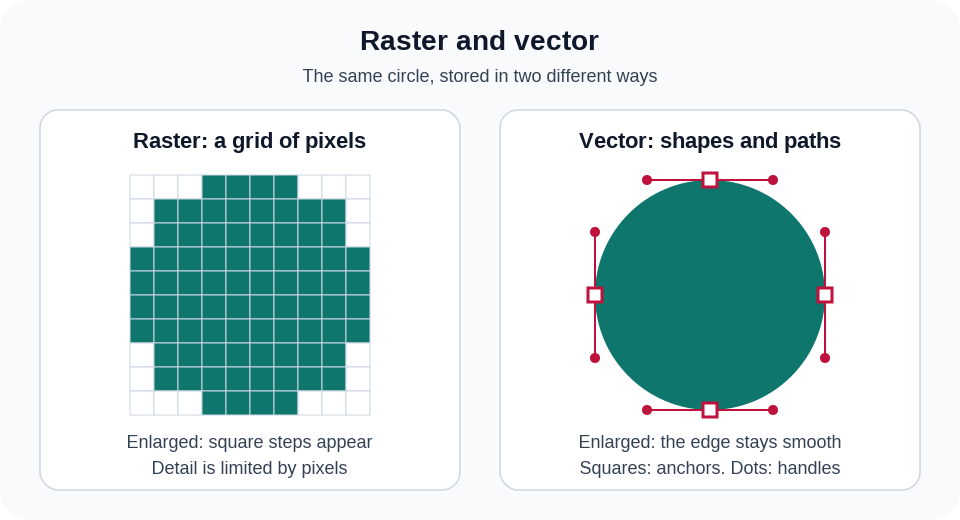
A raster image, also called a bitmap, is a grid of pixels. Each pixel has its own color. When the pixels are small enough, your eyes blend them into a smooth picture.
A photo from a camera or phone is a raster image. So is a screenshot. Image editors that paint and retouch work mainly with pixels.
A raster file has a fixed number of pixels, for example 4000 wide and 3000 high. If you enlarge it a lot, there is not enough detail for the new size. Software must estimate new pixels, or each pixel becomes large and visible. The result looks soft or blocky.
Some tools can invent plausible detail when they enlarge a picture. The added detail is a guess. It is not information that the camera recorded, so check results with care, especially for faces, text and products.
Making a raster image smaller is usually safe. But when you save the small version, you throw pixels away. Always keep the original file.
Vector images
A vector image describes shapes: points, lines, curves, fills and strokes. A circle is stored as something like "a circle with this center, this radius and this color". Your device draws it at the size it needs.
Because the shapes are redrawn, a vector image stays sharp at any size. The same logo file can serve a tiny label and a large wall sign.
Vector drawing tools often use paths with anchor points and handles. The handles control how each curve bends. Fewer, well-placed points usually give smoother curves.
Vectors have limits too. A detailed photograph would need an enormous number of shapes, and it would still not look like the original. Vectors work best for clear shapes and flat or smoothly graded color.
Text in a design file is often vector too, because fonts store letter outlines. When you export a layout as a flat PNG or JPEG, that text becomes pixels.
Choosing the right type
| Job | Usual choice | Reason |
|---|---|---|
| Photograph | Raster | Millions of small changes in color |
| Logo | Vector | Must work at many sizes |
| Simple icon | Vector | Clean edges, easy to recolor |
| Screenshot | Raster | It already is a grid of pixels |
| Flat illustration or map | Often vector | Easy to edit and scale |
| Painted artwork | Often raster | Brush texture is pixel based |
Mixing both in one layout
Most real designs combine the two. A poster may have a raster photo, a vector logo and live text. Layout software keeps each piece in its own form until export.
A PDF can hold both vector and raster content. This is why a PDF can have razor-sharp text and a soft photo on the same page. Saving a document as PDF does not turn a small photo into a sharp one.
Converting between the two
Vector to raster is easy. This is called rasterizing. You choose a pixel size, and the software draws the shapes into that grid. Keep the vector source so you can export again later.
Raster to vector is harder. Tracing tools guess shapes from pixels. Results can be good for a simple, high-contrast drawing. For a complex or blurry picture, they often create lumpy curves and thousands of points. Important artwork, such as a logo, is usually redrawn carefully by hand.
Placing a JPEG inside a vector file does not make it a vector. It is still a grid of pixels in a new container.
A worked example
A café owner sends you a tiny logo copied from a web page and asks for a large banner.
- Zoom in. You see blocky, blurry edges, so it is raster.
- Ask for the original vector file. The first designer may still have it.
- If none exists, ask permission to redraw it. Match the shapes and find out which typeface was used, if possible.
- Check the license of any font or artwork you use.
- Save a vector master and export copies for each use.
Telling the types apart
The file name ending gives a hint but is not proof, because some formats can hold both kinds. To check, open the file in suitable software and zoom in a long way. Try to select single shapes. If edges stay crisp and you can select paths, you are looking at vectors. If you see squares, it is pixels.
Common mistakes
- Enlarging a small web image for print. It will likely look soft or blocky.
- Building a logo only in pixels. You will struggle when someone needs it larger.
- Believing a new file ending changes the content. Renaming or wrapping a picture does not create vectors.
- Trusting automatic tracing without checking. Zoom in and clean up the curves.
Try it
Make the shape larger. The left version has a fixed, small grid of pixels. The right version is redrawn from its description each time.
Pick the better starting type for each job.
Check your understanding
Quick check · 4 questions
of 4 answered You scored / 4 · perfect!
-
1. What is a raster image made of?
Raster images store a color for each pixel in a grid. -
2. Why does a vector logo stay sharp when enlarged?
Vector files describe shapes, so the software can render them at any size. -
3. You place a small JPEG into a vector design file. What is the photo now?
Putting pixels in a new container does not turn them into shapes. -
4. Which statement about automatic tracing is most accurate?
Tracing is an estimate. It tends to do better with simple, high-contrast artwork.
Summary
- Raster images are grids of pixels. Vector images describe shapes.
- Enlarging rasters can make them soft or blocky. Vectors stay sharp.
- Use rasters for photos, and vectors for logos and simple icons.
- PDFs can contain both.
- Keep original and master files.
अपनी प्रगति ट्रैक करें
मुफ़्त अकाउंट बनाएँ, लेसन पूरे के रूप में चिह्नित करें और किसी भी डिवाइस पर वहीं से शुरू करें जहाँ छोड़ा था।