
























Lektion 7 · The Studio and the DAW
What a DAW Does
Meet the digital audio workstation: audio and MIDI tracks, clips, the timeline, the mixer, signal routing, non-destructive editing, plugins and export.
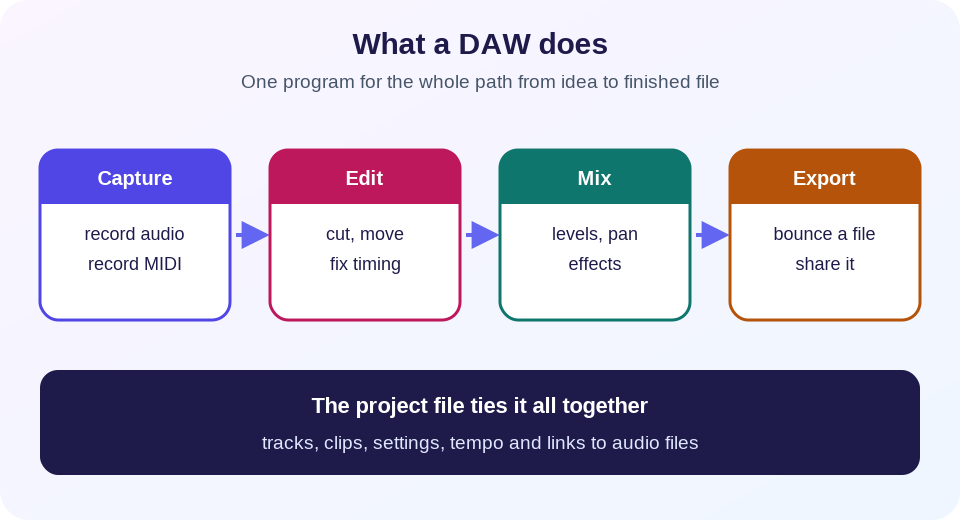
A digital audio workstation, or DAW, is the software at the center of most home studios. You record into it, arrange your parts, add effects, mix and export a finished file.
DAWs look different from each other. Under the surface, most share the same ideas. Learn the ideas, and switching programs later becomes much easier.
What you will learn
- The main parts of a DAW
- The difference between audio tracks and MIDI tracks
- How signals move through the mixer
- What non-destructive editing and bouncing mean
The timeline and transport
Most DAWs show a timeline. Time moves from left to right. A playhead shows the current position. The transport controls play, stop, record and loop.
You can usually view the timeline in bars and beats or in minutes and seconds. Bars and beats follow your project tempo, measured in beats per minute (BPM). Some DAWs also offer a clip-launching view for trying loop ideas without a fixed timeline.
Tracks and clips
A track is a lane for one part, such as lead vocal or bass. A clip (or region) is a block of material on a track.
| Track type | What it holds | Example |
|---|---|---|
| Audio | Recorded or imported sound | A vocal, a guitar, a drum loop file |
| MIDI or instrument | Note instructions that play an instrument | A synth bass line |
| Group or bus | The combined output of several tracks | All drum tracks |
| Return or effect (aux) | A shared effect fed by sends | One reverb for many tracks |
| Master or main output | The final mix | Everything together |
An audio clip contains a waveform: the sound is already fixed. A MIDI clip contains instructions: you can change the notes, or even the instrument, later. Chapter 3 explains MIDI.
The mixer and signal flow
The mixer shows each track as a channel strip with a level fader, a pan control (left to right position), mute and solo buttons, and places for effects.
A typical path for one track looks like this:
flowchart LR
  A["Clip or instrument"] --> B["Insert effects"]
  B --> C["Fader and pan"]
  C --> D["Group bus"]
  D --> E["Main output"]
  C -. "send" .-> F["Return effect"]
  F --> E
A simplified signal path. The exact order of sends, pan and faders depends on the DAW and your settings.
- An insert effect sits directly in the track's path. The whole signal goes through it.
- A send feeds a copy of the signal to another channel, often a reverb or delay. You control the amount for each track.
A pre-fader send does not change when you move the track fader. A post-fader send follows the fader, which is common for reverb.
Plugins
Plugins are add-on programs that run inside the DAW. Effects change audio, such as an EQ, compressor or delay. Instruments create sound, such as a synthesizer or sampler. Plugins come in different formats, such as VST3, Audio Units and AAX. Your DAW supports only some formats, so check before you install or buy.
Download plugins only from sources you trust, and read their license terms.
Non-destructive editing
When you cut, move or fade a clip, most DAWs do not change the original audio file. They store instructions such as "play this file from second 3 to second 7". This is non-destructive editing. You can undo or stretch the clip edges later.
Some functions, such as certain "process file" commands, create a new file or change an existing one. Read what a command does before you use it on your only copy.
Automation
Automation records how a control changes over time. For example, you can raise a vocal slightly in a chorus or open a filter during a build-up. You draw the changes or record your control moves.
Bouncing, rendering and exporting
These words usually mean making a new audio file from your project.
- Bounce or render a track: turns a track, including its effects or instrument, into audio. This can save processing power.
- Freeze: a temporary version of the same idea that you can usually undo. Not every DAW offers it.
- Export the mix: creates a file from the main output, ready to share.
- Export stems: creates separate files for groups such as drums, bass and vocals.
A worked example
You want to make a short loop.
- Set the tempo to 90 BPM.
- Add a drum instrument track and program one bar of a beat.
- Add a MIDI bass track and play four notes.
- Add an audio track and import a sound you have permission to use.
- Balance the faders before adding effects.
- Loop eight bars, then export them as a WAV file.
At 90 BPM in 4/4 time, one beat lasts about 0.667 seconds, so eight bars (32 beats) last about 21.3 seconds.
Common mistakes
- Adding many effects before the basic balance works.
- Putting a separate heavy reverb on every track when one return could serve many.
- Leaving tracks named "Audio 1" or "MIDI 7".
- Using a solo button for a long time and forgetting to judge the part in the full mix.
Try it
Match each DAW term with its meaning.
Check your understanding
Quick check · 4 questions
of 4 answered You scored / 4 · perfect!
-
1. Which track type holds note instructions rather than recorded sound?
MIDI clips contain instructions that an instrument turns into sound. -
2. You want ten tracks to share one reverb. What is the usual approach?
Sends feed a shared effect, with a separate amount for each track. -
3. What usually happens to the original file when you trim a clip in a non-destructive editor?
The DAW stores instructions about which part to play. -
4. What are stems?
Stems let someone work with groups, such as drums or vocals, separately.
Summary
- A DAW combines recording, editing, instruments, mixing and export.
- Audio tracks hold sound, while MIDI tracks hold instructions.
- Inserts process a whole track, and sends feed shared effects.
- Clip editing is usually non-destructive, but check what each command does.
- Bounce, freeze and export create audio from your project.
Verfolge deinen Fortschritt
Erstelle ein kostenloses Konto, hake Lektionen ab und mach auf jedem Gerät dort weiter, wo du aufgehört hast.